
Get set up
On an iPad or tablet
Any 13-inch tablet with Chrome works. Here's what we'd get.
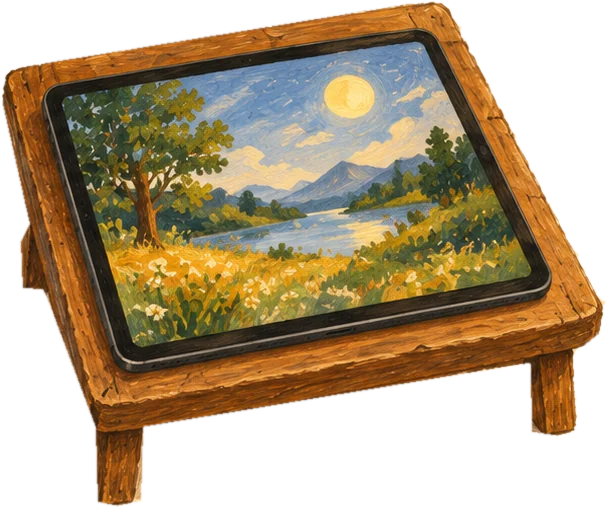
For a family
Refurbished 13-inch iPad Air
Like new, full warranty, costs less.
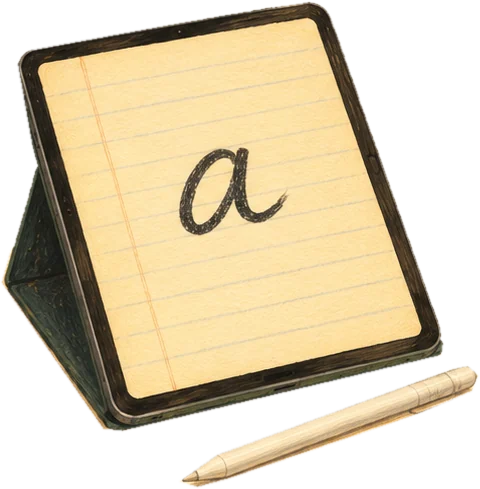
For educators
New 13-inch iPad Air + Apple Pencil
Room for years. The pencil makes My Font shine.
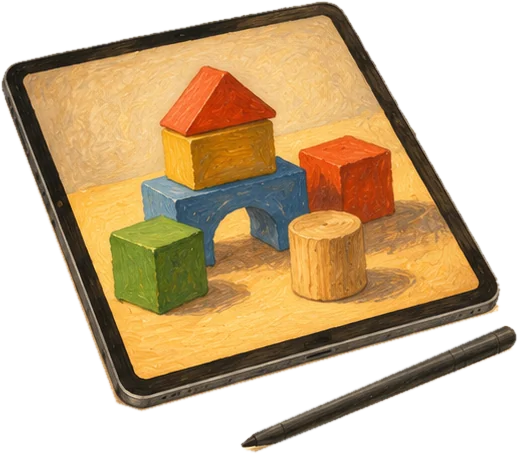
Not an iPad?
Samsung Galaxy Tab, the "Plus" size
Same big screen, often for less. Some come with a stylus.
- 12 inches or bigger
- Still gets updates (M1 or newer for an iPad)
- Wi-Fi only is fine
- Skip Amazon Fire tablets
On a tablet: every book and all the learning tools. The big table games need a ComTop table.
More options
For families
- Lowest cost at that size: an older 12.9-inch iPad Pro (M1, 2021). Same big screen, still plenty fast for every book and Deck. Often the cheapest way into the big size, through Back Market or Amazon Renewed. Check that it comes with a warranty and a healthy battery.
- Tight budget: the basic 11-inch iPad. It works fine for the books and learning tools. It's just a smaller space.
For educators and educational therapists
- Add a stylus. My Font and the writing tools shine with a pen.
- Apple Pencil (USB-C): works with every current iPad. The safe, simple choice.
- Apple Pencil Pro: a step up, for newer iPad Air and iPad Pro models. Check that it matches the iPad before buying.
Not an iPad?
Everything runs in a regular web browser, so plenty of other tablets work. Aim for 12 inches or more.
- Samsung Galaxy Tab, the "Plus" size (about 12 to 13 inches): the closest match to a 13-inch iPad, usually for less. The fan edition models come with a stylus in the box, great for My Font.
- Lenovo Tab: big-screen options for less, from about 12 up to 14 inches.
- OnePlus Pad: about 12 inches, a sharp screen and fast. A strong value pick.
- Microsoft Surface Pro: a Windows tablet. Pricier, but it doubles as a laptop.
- A touchscreen Chromebook: a smart pick for educators, since many schools already use them. Make sure it says "touchscreen."
- A Windows touchscreen laptop or 2-in-1 that folds flat.
Skip Amazon Fire tablets. They don't run regular Chrome, and their browser can be hit or miss. Very cheap, no-name tablets are often too slow for the books' music and animation.
For any brand: 12 inches or more, a recent model that still gets updates, and the Chrome browser.
On a big table
A ComTop table is a big touchscreen lying flat, with people standing or sitting around all four sides. There is nothing to install and nobody signs in.
-
Lay the screen flat
Put the touchscreen face up, level, at a height everyone at the table can reach across. Decks are built for hands coming in from every side, so leave room on all four edges.
-
On Windows, turn the gestures off
A Deck needs every touch to reach the table instead of Windows. These are on from the factory, and a Deck cannot turn them off for you, so it is worth five minutes once on the machine.
In Settings, Bluetooth & devices, Touch: turn off three and four finger touch gestures, turn off two finger press and hold, and turn off touch screen edge gestures.
Then in the old Control Panel, Pen and Touch, on the Touch tab: pick Press and hold, then Settings, and uncheck Enable press and hold for right-clicking.
-
Open a Deck
Every Deck is one page. Open it in the browser and it runs. Each page carries its own fonts, sounds and pictures, so once a Deck has loaded it keeps playing even if the internet drops.
-
Go full screen
Most Decks put brackets in the corners. Touch one and the Deck fills the table. The three dots open that Deck's own menu, where you pick the mode, the sound and who is playing.
-
Hand it to the table
Nothing else is set up. A learning table asks for a first name or initials so a kid can find their own work again, and that stays on the machine in front of you.
What stays on the table
Kids never have accounts. Names, recordings and progress sit on that one machine and go nowhere else. No Deck sends anything to a server.
There is one sign-in, and it is for the grown-up who bought the Decks, on the account page. It leaves a single cookie in that browser, marked so no script on the page can read it, and it holds nothing but the sign-in itself. It is never asked for at the table, and no kid ever meets it. Signing out removes it.
If the internet drops
A Deck that is already open keeps playing. Everything it needs is in the page, so a wobbly connection in the middle of a game is not something the table notices.